
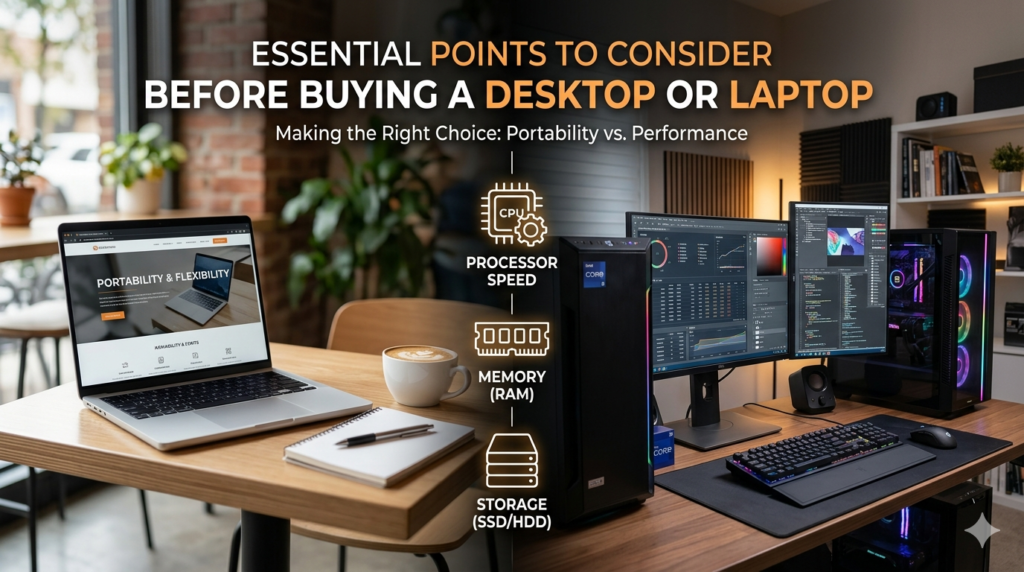
Buying a new or old computer or laptop can be an exciting but sometimes overwhelming process. Here are the key points to remember to ensure you make the best decision for your needs:
- Define Your Purpose and Budget:
- How will you use it?
- What’s your budget?
- Key or significant Hardware Components:
- Processor (CPU):
- RAM (Random Access Memory):
- Storage (SSD vs. HDD):
- Graphics Card (GPU):
- Operating System (OS):
- Laptop-Specific Considerations:
- Size and Portability:
- Battery Life:
- Keyboard and Touchpad:
- Ports:
- Build Quality:
- Desktop-Specific Considerations:
- Form Factor:
- Monitor:
- Peripherals:
- Other Important Factors:
- Define Your Purpose and Budget:
- Define Your Purpose and Budget:
- How will you use it? Before making a decision on purchasing a computer or laptop, it is crucial to assess your specific needs. Are you a gamer, a student, a creative professional (video editor, graphic designer), or do you just need it for basic tasks like data entry, casual web browsing and email viewing?
- Gamer needs a machine equipped with a powerful graphics card and a fast processor to enhance gaming experience.
- Creative professional work such as graphic design, video editing and music production where software requirements necessitate a high-performance computer that can handle demanding applications.
- Casual browsing or basic office tasks like word processing require significantly less power, making it possible to opt for more budget-friendly options.
- What’s your budget? Having a clear price range and financial boundaries will help narrow down your options significantly and influence your selection process. A well-defined budget allows for informed decisions that align with both needs and financial capabilities. Be realistic about what you can get for your money. Be sure to think about not just the upfront cost but also the long-term value in terms of performance and longevity. If you have no professional use (Video Editing and Graphic Designing) or gaming than buying a high-end machine is waste of money.
- Key or significant Hardware Components:
- Processor (CPU): This is the “brain” of the computer. Look for Intel Core i5/i7/i9 or AMD Ryzen 5/7/9. For basic tasks, an Intel Core i3 or AMD Ryzen 3 is sufficient. Higher numbers generally mean better performance. As per my experience higher clock speeds and multiple cores contribute to improved performance it means base frequency of Processor must be 3.0 ghz and above. The vendor or Sales representatives will tell you that turbo frequency is more than 3.00 Ghz but stuck to the point that you want base frequency 3.00 ghz or above. To check base frequency of processor right click on start menu and select system there you will find out the details of Processor.
- RAM (Random Access Memory): RAM temporarily stores data and allowing the CPU to instantly access data for active applications, web browsing, and multitasking. This affects how many programs you can run at once smoothly. More RAM increases speed, preventing lag.
- 4 GB: Recommended for the most users (using x86 or 32 bits Operating System) and for casual browsing or basic office tasks like word processing and data entry.
- 8 GB: Recommended for the most users (using x64 or 64 bits Operating System) and for casual browsing or basic office tasks like word processing and data entry.
- 16 GB or more: Essential for smoother multitasking and responsiveness in gaming, video editing, and other intensive tasks.
- Storage (SSD vs. HDD):
- SSD (Solid State Drive): Much faster read/write speeds than HDD, leading to quick boot times and application loading. This is highly recommended for the main drive or bootable drive where your OS is installed. There are many types of SSD but, mainly two are used…
- 1. SATA III SSD (2.5-inch or M.2): Max speed is limited by the SATA interface to about 550 MB/s . Ideal for upgrading older laptops/desktops.
- 2. NVMe SSD (PCIe 3.0/4.0/5.0): The standard for modern laptops and desktops.
- PCIe 3.0: Up to ~3,500 MB/s.
- PCIe 4.0: Up to ~7,500 MB/s.
- PCIe 5.0: Over 14,000-15,000 MB/s.
- HDD (Hard Disk Drive): Slower but offers more storage capacity for a lower price. Good for storing large files which you don’t access frequently.
- A common practice is a smaller SSD for the OS and a larger HDD for data storage. It’s observed that in case of any worst condition data recovery is easiest and less costliest in HDD rather than SSD.
- SSD (Solid State Drive): Much faster read/write speeds than HDD, leading to quick boot times and application loading. This is highly recommended for the main drive or bootable drive where your OS is installed. There are many types of SSD but, mainly two are used…
- Graphics Card (GPU):
- Integrated Graphics: Built into the CPU, suitable for everyday use and light tasks.
- Dedicated Graphics: A separate, powerful graphics card (e.g., NVIDIA GeForce or AMD Radeon) is essential for gaming, video editing, music production and 3D modelling. But, needs high cooling measures otherwise it affects lifespan of your computer system.
- Operating System (OS): Selecting a OS is very crucial part of your selection process.
- Windows: The most common OS and widely used operating system globally, favoured for its flexibility and compatibility offering the widest range of software and hardware compatibility. This includes not only general productivity tools but also specialized software for industries such as graphic design, engineering, and gaming and general use. However, Windows can also be susceptible to security vulnerabilities and may require regular updates and maintenance to ensure optimal performance. Windows is available in 2 architectures.
- 1. x86 or 32 bits: Best and very cost effective as it runs smoothly in older systems and maximum ram support is 4 GB, suitable for data entry work, day to day routine work and internet browsing. Unless you had specific requirement of x64 architect you can use it worriless. Windows 7 (2009) & Windows 10 (2015) are available in x86 architectures and still are in use. But, Microsoft has stopped their support in 2015 for Windows 7 and in 2025 for Windows 10. Windows 11 is available only in x64 architecture.
- 2. x64 or 64 bits: A 64-bit version of Windows is an operating system designed to handle large amounts of data and random-access memory (RAM). 64-bit systems can theoretically address up to 16 exabytes (EB) of RAM, and practically support 128 GB, 2 TB, or more depending on the Windows edition. Accommodating multitasking and more responsive for high-performance and highly intensive tasks and the memory needs of modern operating systems. Suitable for gaming, graphic design, video editing, music production and other intensive tasks.
- Mac OS: developed by Apple and known for its user-friendly interface, seamless integration with other Apple products, and strong performance for creative professionals. It’s widely used for video editing, graphic design, and music production. Hardware can be more expensive than comparable Windows systems, and some specialized applications may not be available.
- Chrome OS: Found on Chromebooks. It’s a lightweight, cloud-based OS ideal for web browsing, email, and simple tasks. It’s not suitable for heavy-duty software or offline use.
- Linux: Linux is a family of open-source operating systems. It’s known for its flexibility, security, and open-source nature. It’s popular for servers, supercomputers, and various devices. It’s a versatile OS that can be customized to fit specific needs, from desktops to embedded systems.
- Android OS: (developed by Google) is a Linux-based mobile operating system primarily designed for touchscreen mobile devices like smartphones and tablets.
- Laptop-Specific Considerations:
- Size and Portability:
- 13-14 inch: Very portable, ideal for students and frequent travellers.
- 15-16 inch: A good balance of screen size and portability, the most common choice.
- 17 inch+: Less portable, but offers a large screen for gaming or professional work.
- Battery Life: Check the manufacturer’s estimated battery life, but also read reviews to see real-world performance.
- Keyboard and Touchpad: If possible, try out the keyboard and touchpad. A comfortable typing experience is crucial for productivity.
- Ports: Make sure it has the ports you need (e.g., USB-A, USB-C, HDMI, SD card reader) without needing an adapter.
- Build Quality: Consider the materials. Metal bodies are more durable than plastic.
- Desktop-Specific Considerations:
- Form Factor:
- Tower: The most common type, offering easy upgradeability, powerful performance, long life span .
- All-in-One (AIO): The computer is built into the monitor. It saves space but is harder to upgrade and needs sufficient cooling otherwise heating problem arises.
- Mini or Tiny PC: Very small and discreet, but with limited performance and upgrade options and needs sufficient cooling otherwise heating problem arises.
- Monitor: following consideration to be kept in mind while buying a monitor with budget.
- 1. Resolution: Monitor resolution refers to the total number of pixels displayed and determining image sharpness.
- HD (720p): Basic resolution, generally considered low for modern monitors and common on smaller/older screens.
- Full HD (FHD / 1080p): The long-standing, affordable standard for daily office work, browsing, and standard gaming.
- Quad HD (QHD / QHD+ / 1440p): Known as 2K, this is the “sweet spot” for many users, offering higher sharpness than 1080p without demanding extreme graphical power.
- 4K Ultra HD (UHD): Delivers four times the pixels of Full HD. Ideal for large screens, content creation, and high-fidelity gaming.
- 5K: Used for premium monitors, providing extreme detail for professional video editing and content creation.
- 8K UHD: Exceptionally high detail for specialized, high-end professional applications.
- 2. Refresh rate: monitor’s refresh rate is the number of times per second it updates the displayed image, measured in Hertz (Hz) . It deliver smoother visuals, reduce motion blur, and increase responsiveness. Refresh rates are generally categorized by their intended use:
- 60Hz – 75Hz (Standard): Ideal for general office work, browsing, and casual, slow-paced gaming.
- 100Hz – 144Hz (Gaming/Multimedia): The “sweet spot” for modern gaming, offering significantly smoother motion for action-packed scenes than 60Hz.
- 240Hz, 360Hz, 500Hz+ (Competitive Gaming): Extremely high rates used by professional competitive gamers to minimize input lag and motion blur, providing a competitive edge.
- 3. Panel type: Monitor panel types define a screen’s image quality, speed, and viewing angles . Key Monitor Panel Technologies are :
- IPS (In-Plane Switching):
- Pros: Best colour accuracy, consistent image quality, and wide viewing angles (178°).
- Cons: Lower contrast ratios than VA (dark scenes can look grey), higher cost.
- Best For: Professional graphic design, video editing, and general-purpose, high-quality gaming.
- Subtypes: Fast IPS (faster response), IPS Black (higher contrast).
- VA (Vertical Alignment):
- Pros: Excellent contrast ratios (deeper blacks) and better colour than TN.
- Cons: Slower response times can cause “smearing” or ghosting in fast games; narrower viewing angles than IPS.
- Best For: Immersive gaming, movies, and dark room environments.
- TN (Twisted Nematic):
- Pros: Cheapest to produce, fastest response times, and highest refresh rates.
- Cons: Poor colour accuracy, narrow viewing angles, and image distortion when viewed from the side or bottom.
- Best For: Competitive, esports-level gaming on a budget.
- OLED (Organic Light-Emitting Diode):
- Pros: Near-instant response times, perfect blacks, and infinite contrast.
- Cons: Expensive, lower brightness than high-end LCDs, and potential for image retention/burn-in.
- Best For: Enthusiast gaming, HDR content, and high-end video consumption.
- IPS (In-Plane Switching):
- Size of Monitor:
- As per my experience invest more in monitor (big size and 5-Star Eye Comfort Certification as we have to work more than 6 hours a day) and less invest or invest as per your requirements in system or CPU.
- 1. Resolution: Monitor resolution refers to the total number of pixels displayed and determining image sharpness.
- Peripherals: Don’t forget to budget for a keyboard, mouse, and speakers.
- Other Important Factors:
- Reviews: Read professional reviews and user feedback to get a sense of real-world performance, build quality, and common issues.
- Warranty and Support: Check the length and terms of the warranty and the quality of the manufacturer’s customer support.
- Financing options: can also aid in managing the financial aspect of your purchase. Many retailers offer instalment plans, allowing consumers to spread costs over several months.
- Future-Proofing: Consider if you can upgrade the RAM or storage later on to extend the computer’s lifespan.
By carefully considering these points, you’ll be able to confidently choose a new or old computer or laptop that perfectly matches your needs and budget.
Please Share it to others so they can also get benefit and take right decision.